 Snaply
Your screenshots, one drag away.
Snaply keeps every shot in a drawer at the edge of your screen. One key opens it, and you drag what you need straight into Slack, Gmail or a folder — as the real file, not a paste. Capture a region, record it, annotate it, pull the text out of it. All of it on your PC, none of it on ours.
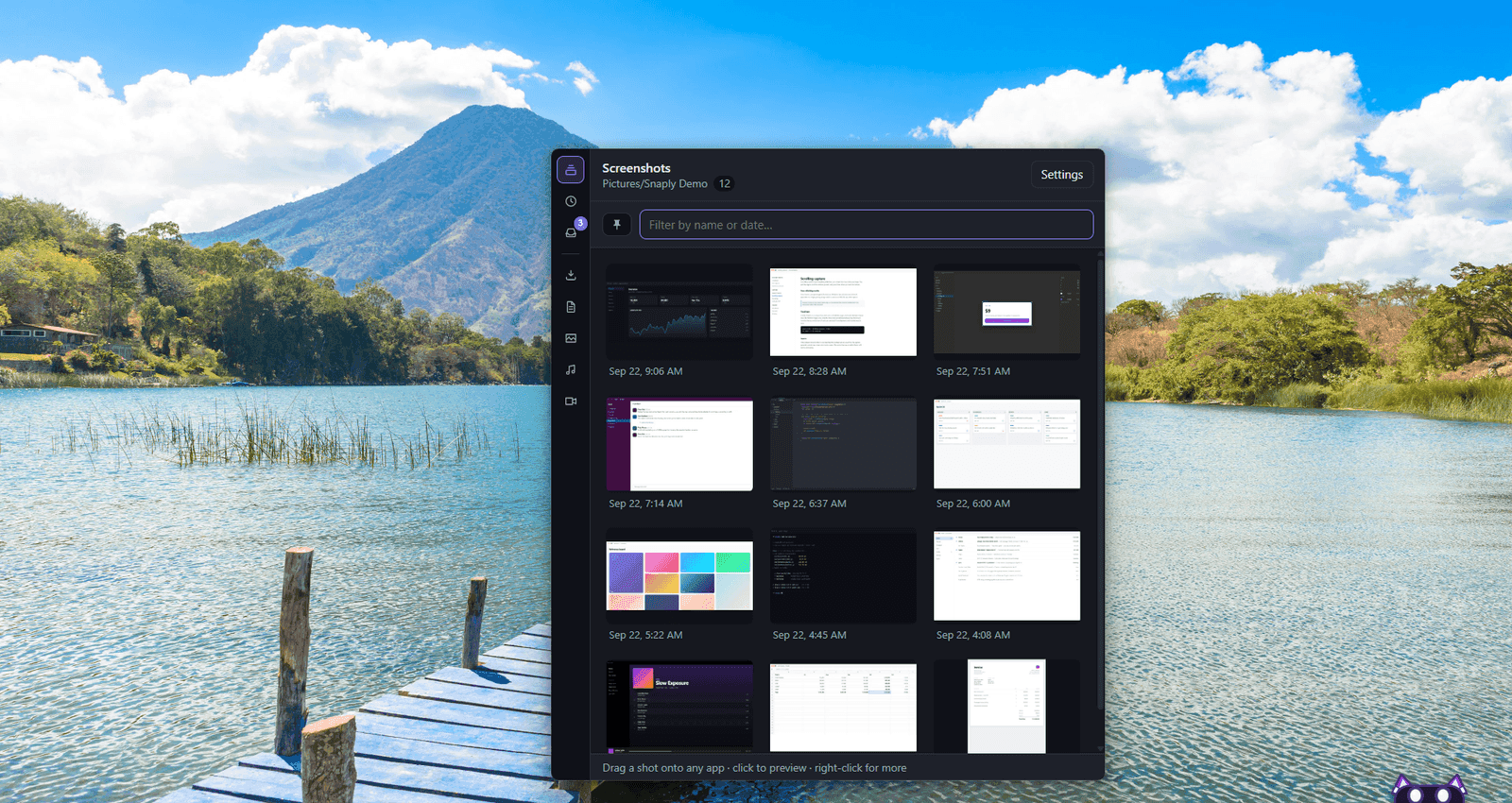
Snaply on Windows 11. The drawer is open on the right, and that is Snaply itself peeking up from the bottom of the screen — click it, or press the hotkey, from anywhere.
Open it, grab it, drop it.
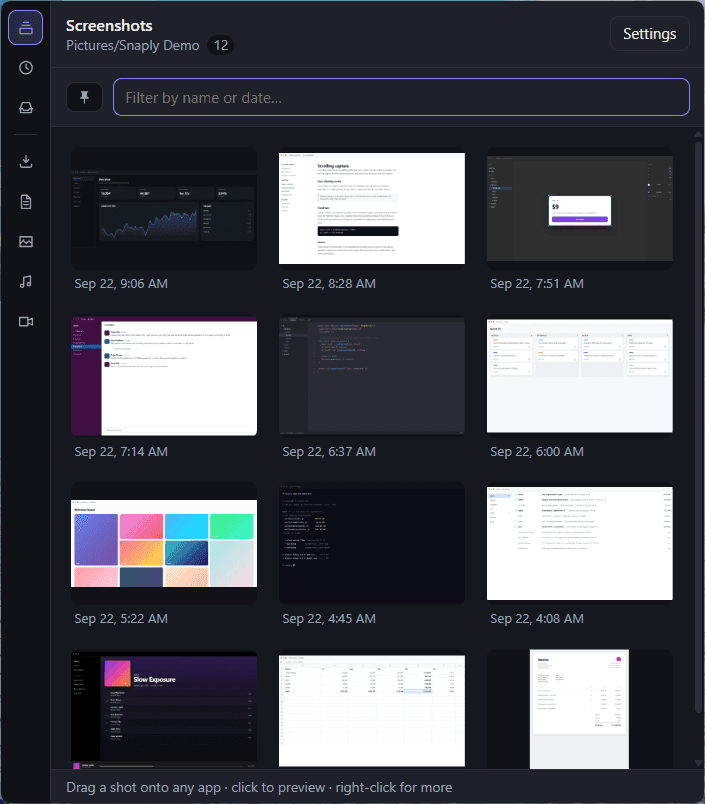
Press the hotkey anywhere and the drawer appears over whatever you were doing. Every shot you have taken is there, newest first, labelled by when you took it.
Drag one onto a chat, an email, a folder — it lands as the actual file, exactly as if you had dragged it out of File Explorer. Pick several and one drag carries them all.
Check it before you send it.
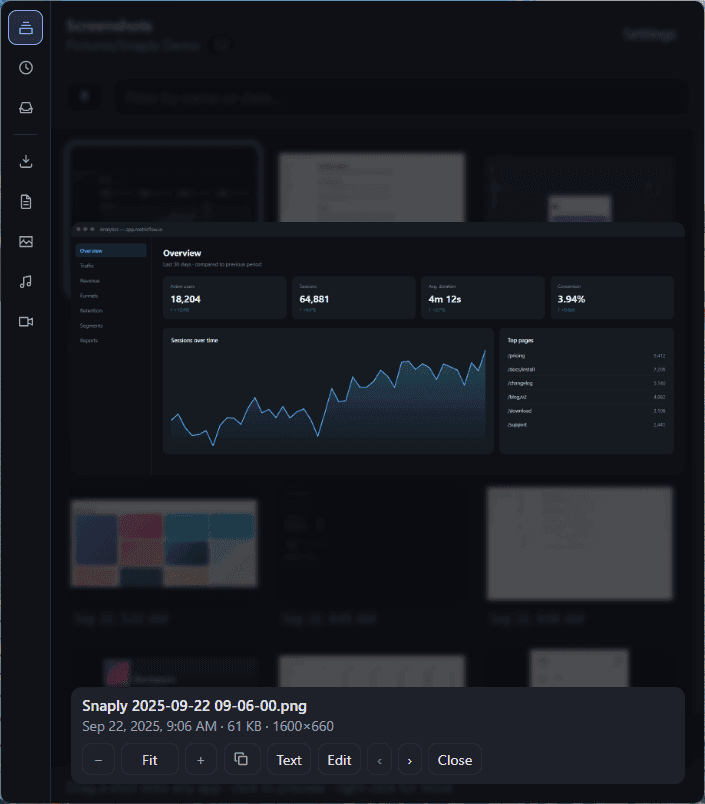
Click any thumbnail to fill the drawer with it. Step through the whole folder with the arrow keys, zoom from 10% to 800%, or snap back to Fit. Zooming keeps whatever was in the middle of the view in the middle, so the thing you are inspecting does not slide off screen.
Copy the image, open it in the editor, or read its text — the buttons are right there.
Pick the region. Then decide what it is.
Ctrl Shift S freezes the screen and dims it. Drag out the part you want, and only then choose: a still image, a video, an animated GIF, or a scrolling capture of something taller than your monitor. Press Enter and it saves as an image without touching the bar at all.
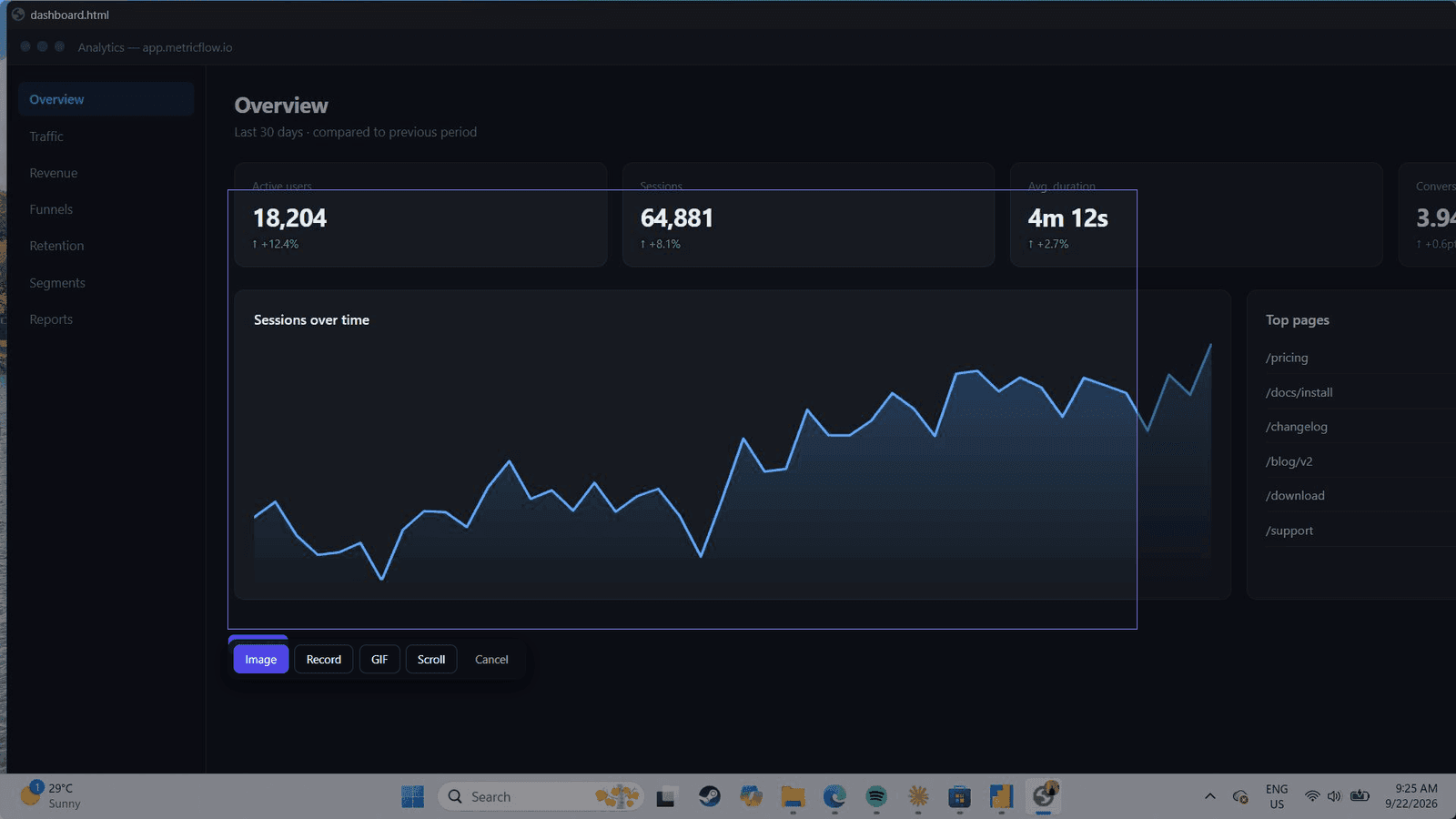
One selection, five ways out. Snaply cannot take over Win Shift S — Windows reserves it — but shots taken that way land in the drawer anyway.
Longer than the screen is not a problem.
Choose Scroll, scroll the window yourself, press Done. Snaply compares every frame with the last and appends only what it has not seen, so a page, a thread or a long document comes out as one continuous PNG.
Sticky headers do not repeat down the image — rows that never move are found and kept exactly once. Scroll back up by mistake and that part is skipped rather than pasted in twice.
Show it moving.
The same selection can be a video instead. A thin outline marks what is being recorded and a small bar counts the seconds — click Stop and it lands in the drawer with everything else. Choose GIF and you get a looping clip instead, ready to paste into an issue or a chat.
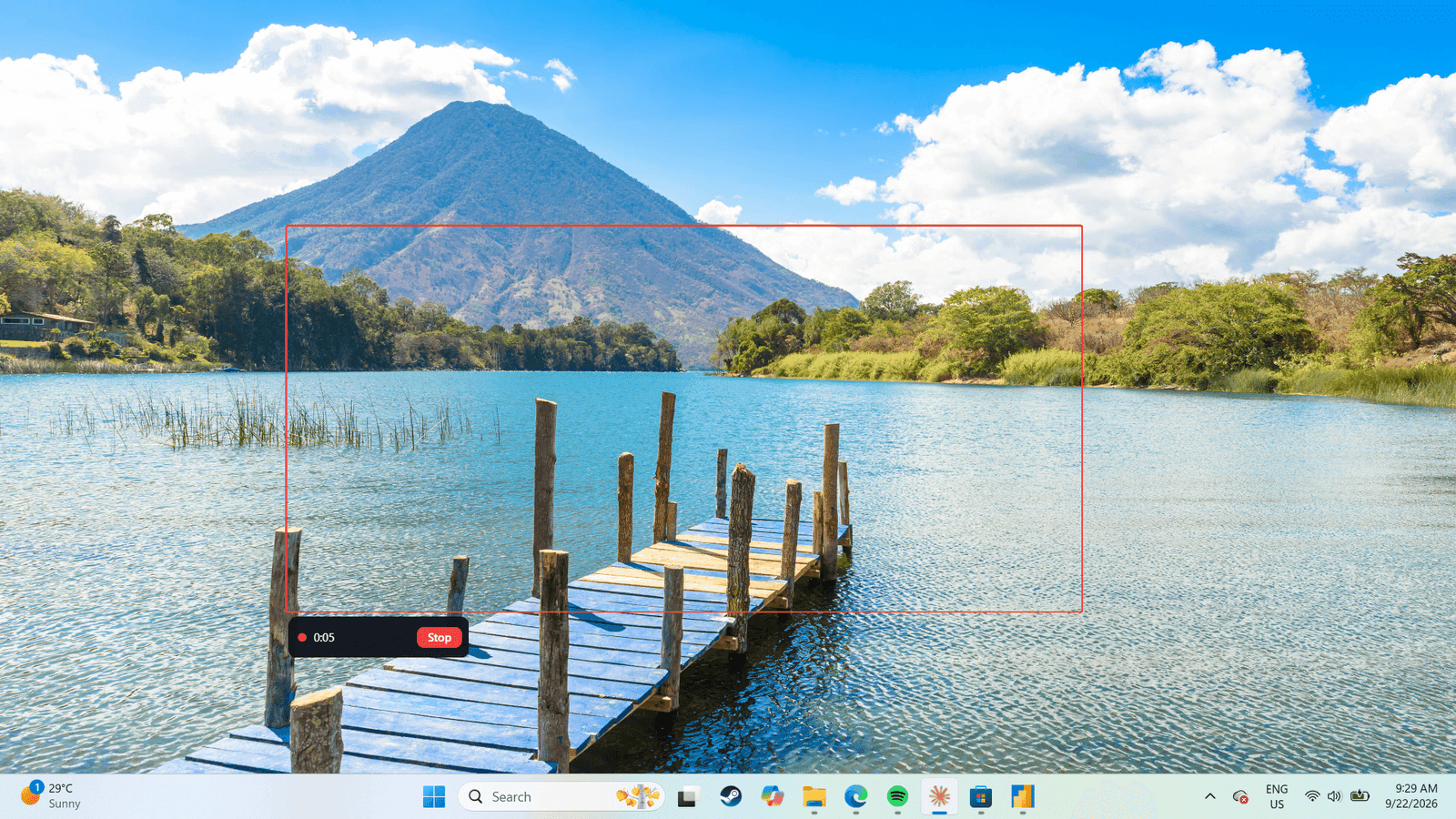
The outline is click-through, so you can keep working inside the area you are recording. Snaply hides itself from its own recording.
Then cut the dead air.
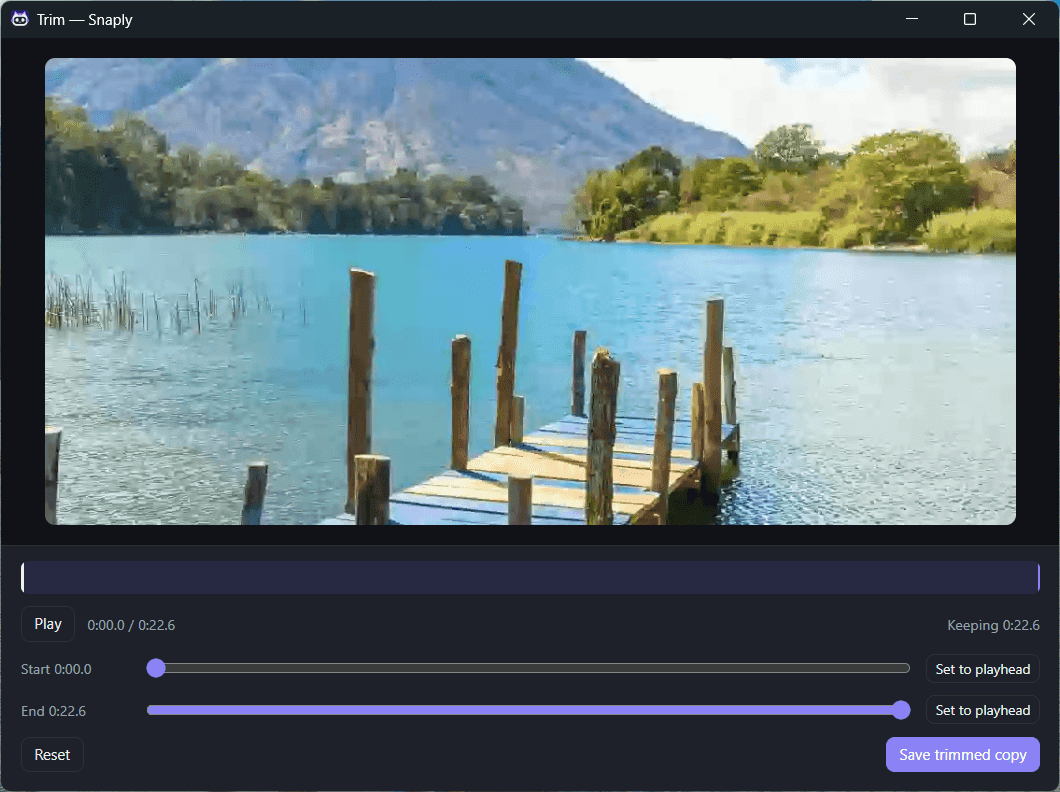
When a recording stops, a trim window opens on it. Drag the two handles, or set either one to wherever the playhead sits, and save a trimmed copy beside the original.
Nothing overwrites the clip you started with, and there is no ffmpeg to install.
Point at the thing you mean.
Pen, arrow, box, circle, highlighter, text, blur, pixelate and crop. Blur and pixelate always sample the untouched original, so nothing smears or compounds as you redraw. Save a copy and the file beside it becomes name (edited).png — the shot you started from is never overwritten.
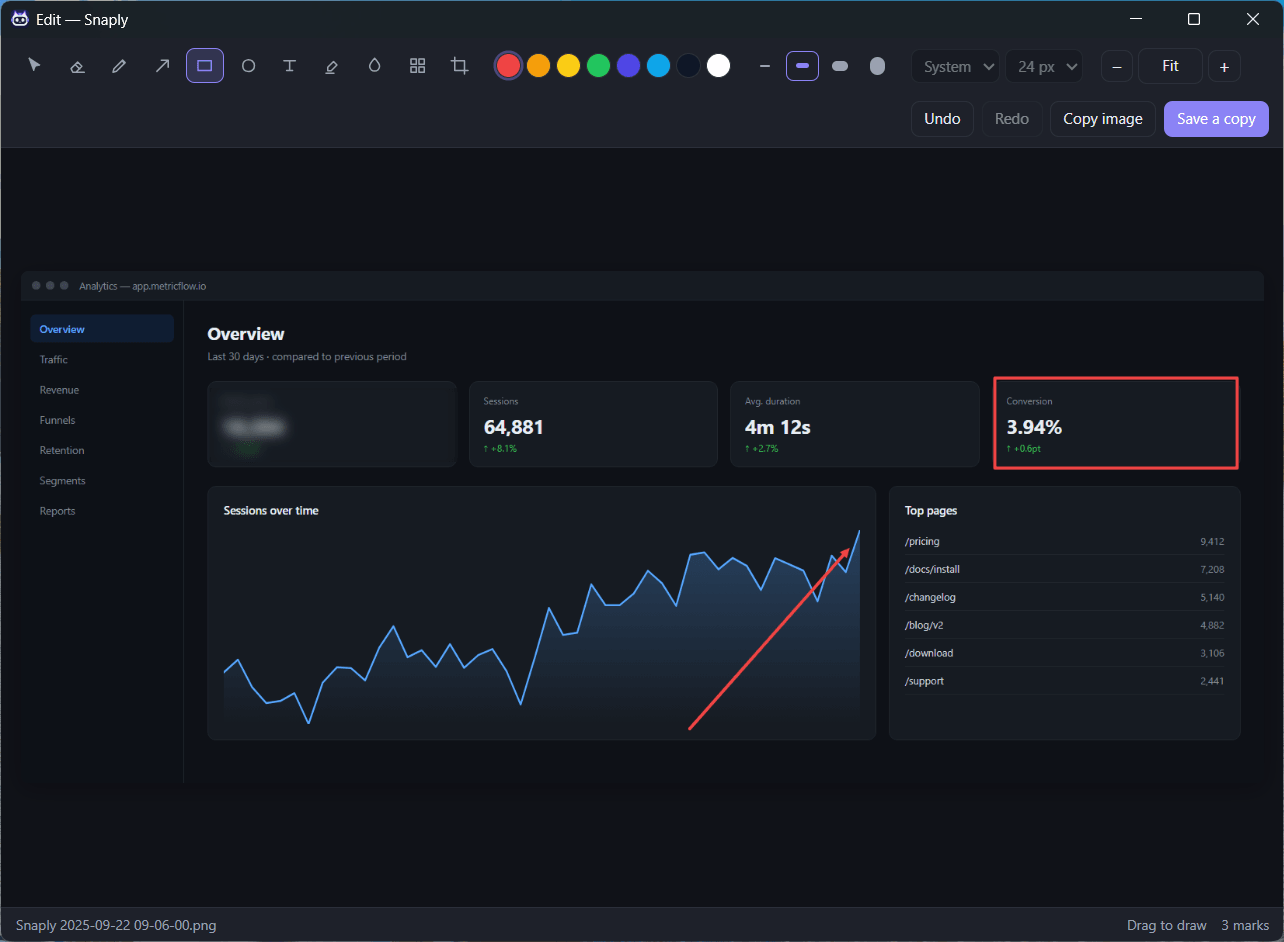
Three marks, made in the editor: a blur over a figure, an arrow, and a box. Marks stay objects rather than paint, so the eraser removes a whole stroke and Select can pick one up and move it later.
Read the words out of a picture.
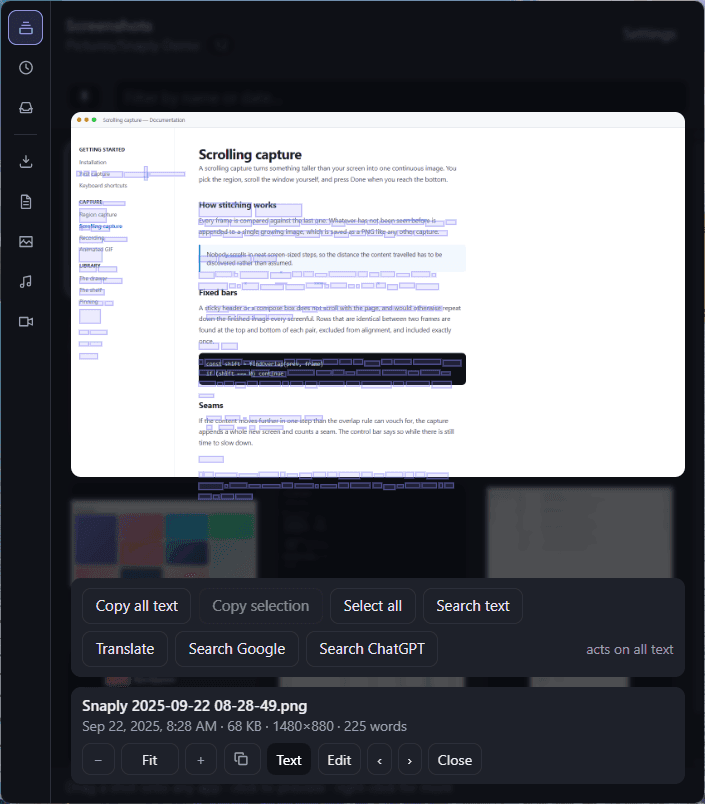
Snaply boxes every word it can find in a screenshot. Drag across them to select, then copy the lot, copy the part you highlighted, or search inside the image.
Recognition runs on your machine, in about half a second, using an English model that ships inside the app. It works with the network unplugged.
Somewhere to put things down.
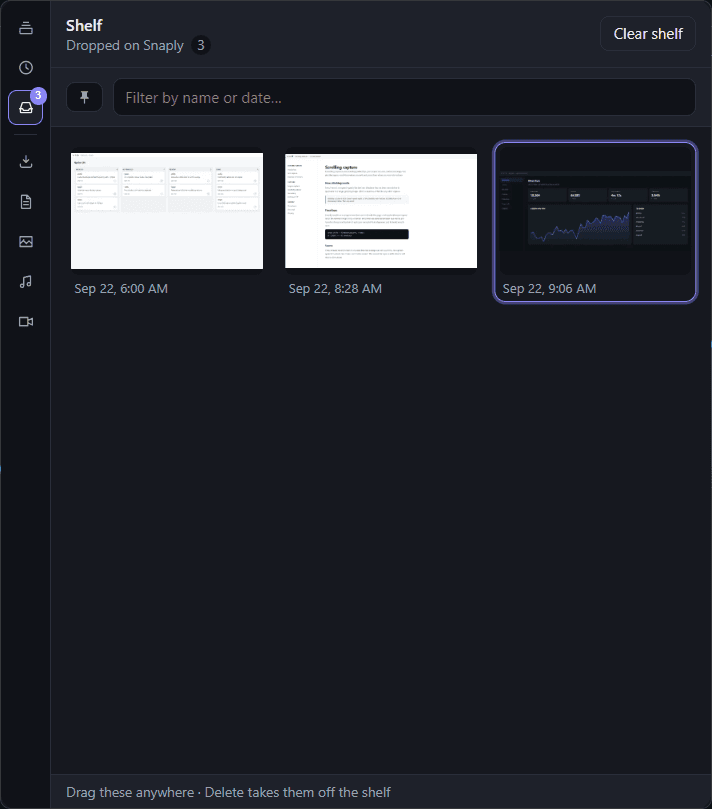
Drag any file onto Snaply by the taskbar and it lands on the shelf. Snaply opens up while you hover so there is a real target to aim at, then shrinks back when you let go. Drag it out again whenever you need it.
The shelf holds references, not copies. Dropping a 2 GB video on it does not quietly duplicate it — and if you later move the original, the entry says so rather than vanishing.
Not just screenshots.
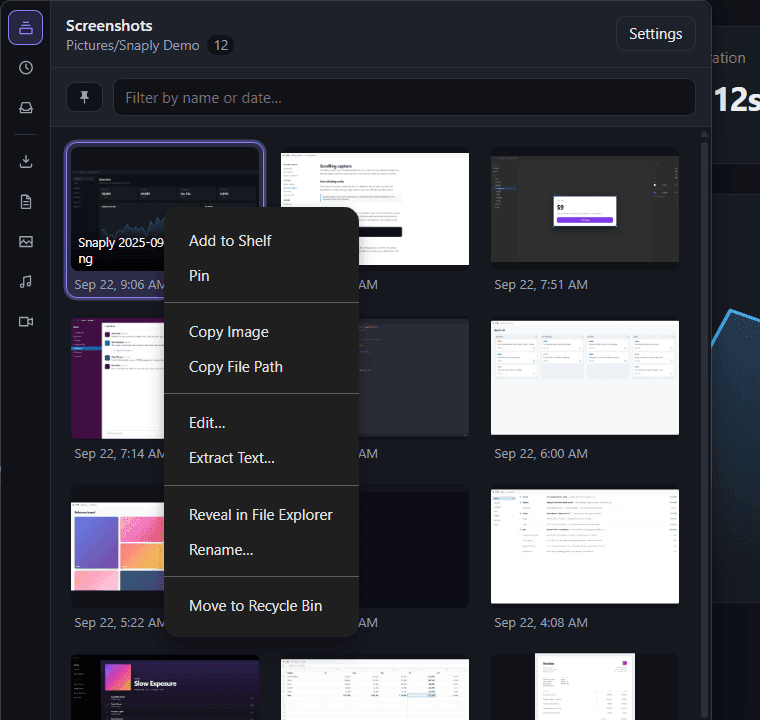
The rail down the left switches what the grid shows: your screenshots folder, or the newest files across Downloads, Desktop, Documents, Pictures, Music and Videos. Any file type, not only images — a PDF or a zip shows its size and drags out the same way.
Filter by name or by date in plain language. Pin the ones you reach for daily. Rename in place, copy the path, reveal it in File Explorer, or send it to the Recycle Bin — which always asks first, and is always recoverable.
Built for people who never touch the mouse.
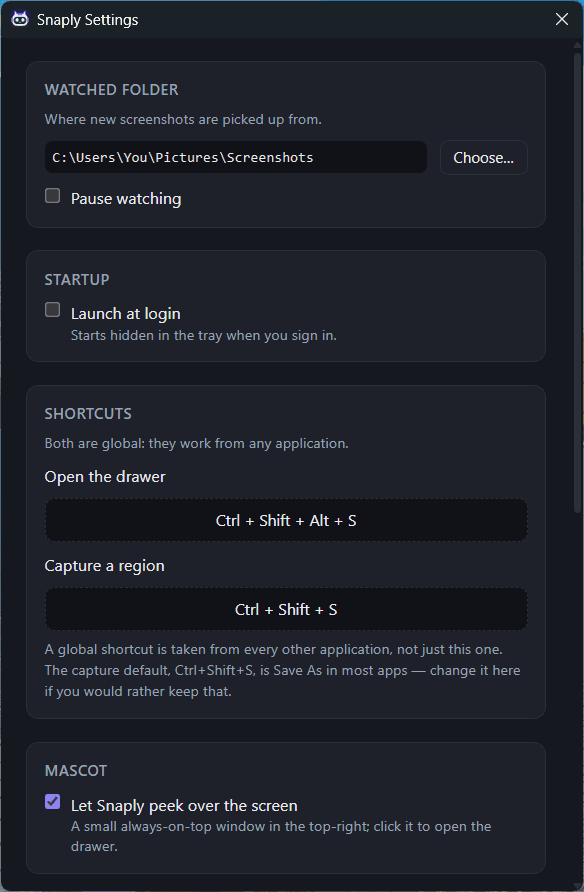
Both global shortcuts work from inside any application, and you can record your own in Settings — along with the watched folder, launch at login, light or dark, and whether PrtScn should open Snaply instead of the Snipping Tool.
Before you ask.
Is there a Mac or Linux version?
Not yet. Snaply is built and tested on Windows 10 and 11, on both 64-bit and ARM. The macOS and Linux builds are written but have not been run on real machines, so they are not offered here. If Windows goes well, they follow.
Does it replace the Snipping Tool?
It can sit alongside it. Windows reserves Win+Shift+S for itself and no application can take that away, but shots taken that way land in the same folder Snaply watches, so they appear in the drawer regardless. If you would rather press PrtScn, there is a setting for that.
Where do my screenshots actually live?
Wherever you tell it. Snaply watches one folder — your Pictures/Screenshots by default — and shows what is in it. It never moves or renames anything behind your back, and uninstalling it leaves every file exactly where it was.
How big is the download?
Around 120 MB. Most of that is the text-recognition engine and its English model, which are bundled rather than downloaded so that reading text out of a screenshot works with no connection at all.
Will Windows warn me when I install it?
Yes, for now. Snaply is not yet code-signed, so SmartScreen shows “Windows protected your PC” on first run — choose More info, then Run anyway. Silencing that needs a certificate, which is on the list.
Yours for nine dollars, and yours alone.
One payment, every feature, updates included — and nothing you capture ever leaves the machine you captured it on.